
PSP: Pay.nl
Settings
To connect to Pay.nl, the following settings need to be configured, view the Pay.nl - How to Connect for more information:
- Code: Fill in the AT-code
- Token: Fill in the API token
- Service ID: Fill in SL-code
- Test: When checked, all transactions will be done in test mode
- iDeal Fast Checkout Enabled: When checked, iDeal Fast checkout is enabled
Specific Payment method parameters
| Payment method | PSP Key |
|---|---|
| Riverty | 2561 |
| Fashioncheque | 815 |
| Bancontact | 436 |
| iDEAL | 10 |
| PayPal | 138 |
| MasterCard | 3138 |
| Visa | 3141 |
::: tip 🔑 PSP keyThe PSP keys are available in the Pay.nl documentation. Click on the payment method type (e.g. online payments) and click on the requested payment method. In the 'Facts' section the Paymentoption ID (Betaaloptie ID) value can be used.:::
Pay.nl: iDeal Fast Checkout
To start using 'iDeal Fast Checkout' with Pay.nl, follow the next steps:
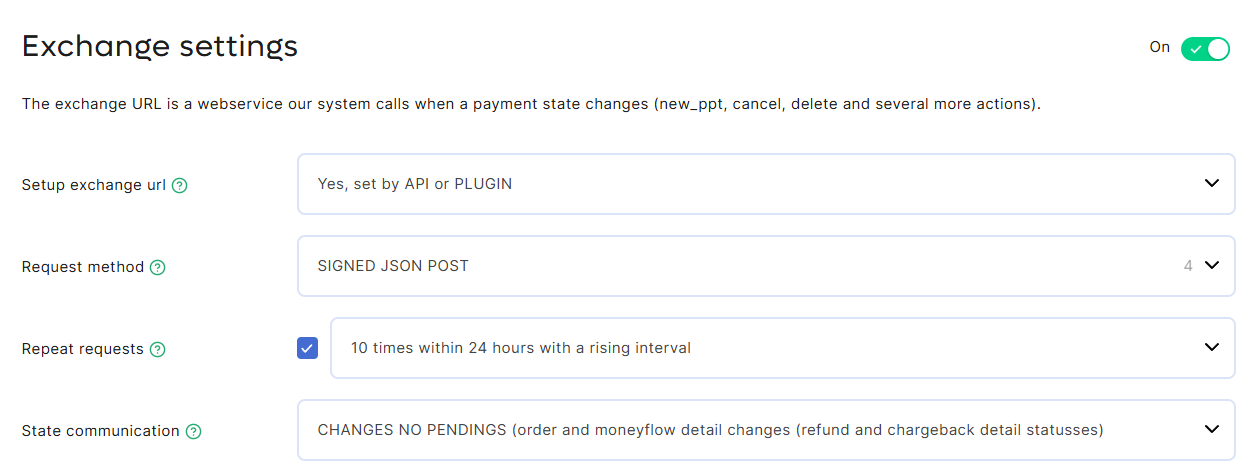
- Important is that the 'Exchange settings' are configured in Pay.nl and that 'Setup exchange URL' and 'Request Method' are configured exactly like in the screenshot below, otherwise the fast check-out won't be available:
- Enable 'iDeal Fast Checkout Enabled' in the 'OMS - Settings' for Pay.nl
- Implement front-end check-out 'Button', which starts the fast check-out (examples can be supplied by the CC team)
iDeal Fast Checkout process
The process works as following:
- Create an order with minimum data (products, payment costs, shipping costs, discounts)
- On a new payment, on Orders_AddPayment the attribute 'CC-FastCheckout' should be added with the value 'true'
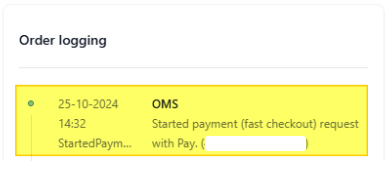
- Start payment by endpoint /payment/[orderPaymentId]/start.In the 'Order logging' payments started using the quick checkout, will be visible:
- Once it is finalized by customer, the data in order should be updated
Updated about 1 year ago
Did this page help you?