
VAT
We calculate VAT in Core-commerce by applying a one-off VAT Rate type field on a Product. The following VAT Rate values are supported:
- High
- Low1
- Low2
- SuperLow
- ParkingTarif
- NoVat
When a VAT Rate value is empty, we pick the next VAT Rate Type based on the following order:
- NoVat > ParkingTarif > Superlow > Low2 > Low1, High
Starting point depends on the VAT Rate, so "ParkingTarif" will check Superlow first when empty.
VAT Rate table
Table based on: link
| CountryCode | Country | Normal | Low1 | Low2 | SuperLow | ParkingTariff | NoVat |
|---|---|---|---|---|---|---|---|
| AT | Austria | 20 | 10 | 13 | 13 | 0 | |
| BE | Belgium | 21 | 6 | 12 | 12 | 0 | |
| BG | Bulgaria | 20 | 9 | 9 | 0 | ||
| CY | Cyprus | 19 | 9 | 5 | 0 | ||
| CZ | Czechia | 21 | 10 | 15 | 0 | ||
| DE | Germany | 19 | 7 | 7 | 0 | ||
| DK | Denmark | 25 | 0 | ||||
| EE | Estonia | 20 | 9 | 9 | 0 | ||
| EL | Greece | 24 | 6 | 13 | 0 | ||
| ES | Spain | 21 | 10 | 10 | 4 | 0 | |
| FI | Finland | 24 | 10 | 14 | 0 | ||
| FR | France | 20 | 5.5 | 10 | 2.1 | 0 | |
| HR | Croatia | 25 | 5 | 13 | 0 | ||
| HU | Hungary | 27 | 5 | 18 | 0 | ||
| IE | Ireland | 23 | 9 | 13.5 | 4.8 | 13.5 | 0 |
| IT | Italy | 22 | 5 | 10 | 4 | 0 | |
| LT | Lithuania | 21 | 5 | 9 | 0 | ||
| LU | Luxembourg | 17 | 8 | 8 | 3 | 14 | 0 |
| LV | Latvia | 21 | 5 | 7 | 0 | ||
| MT | Malta | 18 | 5 | 8 | 0 | ||
| NL | Netherlands | 21 | 9 | 9 | 0 | ||
| PL | Poland | 23 | 5 | 8 | 0 | ||
| PT | Portugal | 23 | 6 | 13 | 13 | 0 | |
| RO | Romania | 19 | 5 | 9 | 0 | ||
| SE | Sweden | 25 | 6 | 12 | 0 | ||
| SI | Slovenia | 22 | 5 | 9.5 | 0 | ||
| SK | Slovakia | 20 | 10 | 10 | 0 | ||
| CH | Switzerland | 8.1 | 2.6 | 3.8 | 0 |
VAT Breakdown type
On orders a breakdown type list is available which contains the VAT breakdown for payment costs, shipping costs and totals.
Example for VAT breakdown
| Amount | BreakdownType | VatAmount | VatRate |
|---|---|---|---|
| 2.95 | Payment | 0.51 | 0.21 |
| 1.82 | Shipment | 0.32 | 0.21 |
| 0.68 | Shipment | 0.06 | 0.09 |
| 44.67 | Total | 7.75 | 0.21 |
| 16.63 | Total | 1.38 | 0.09 |
VAT Overrides
Core-commerce offers flexibility to configure how you want to handle VAT per country. This overrides our default implementation and gives the flexibility to change the VAT calculation type. This also applies on patching the shipping costs of an order.
In the OMS management module 'Vat overrides', the overrides can be managed: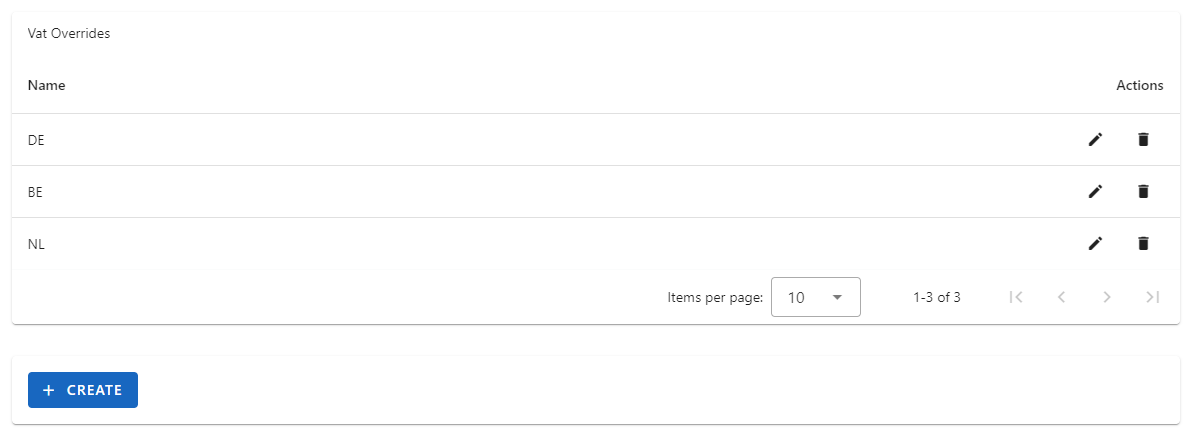
Below we will give examples per Calculation type, based on the following products in the customers cart:
| Product | Quantity | Price | VAT Percentage | Total amount |
|---|---|---|---|---|
| Product A | 1 | € 5,- | 6% | € 5,- |
| Product B | 2 | € 10,- | 21% | € 20,- |
| Subtotal | € 25.00 | |||
| Shipping costs | € 3.50 | |||
| Total amount | € 28.50 |
Calculation type: Distributed
With the 'distributed' calculation type, the VAT rates on the products in the cart are used to determine the correct VAT.
Based on the customers cart, the VAT distribution will be:
- VAT distribution 6%: (100 / 25) * 5 = 20%
- VAT distribution 21%: (100 / 25) * 20 = 80%
When the shipping costs are , the following VAT breakdown for the shipping costs will be done:
| Amount | BreakdownType | VatAmount | VatRate |
|---|---|---|---|
| 0.70 | Shipment | 0.04 | 0.06 |
| 2.80 | Shipment | 0.59 | 0.21 |
Calculation type: Highest
With the 'highest' calculation type, the highest VAT percentage on all orderlines will be used. So in the above example the VAT percentage 21% will be used.
| Amount | BreakdownType | VatAmount | VatRate |
|---|---|---|---|
| 3.50 | Shipment | 0.74 | 0.21 |
Calculation type: Fixed
With the 'fixed' calculation type, the configured VAT percentage will be used, instead of the VAT percentage on the highest VAT percentage on all orderlines will be used.
With the following configuration, for Ireland the 'SuperLow' rate 4.8% will be used.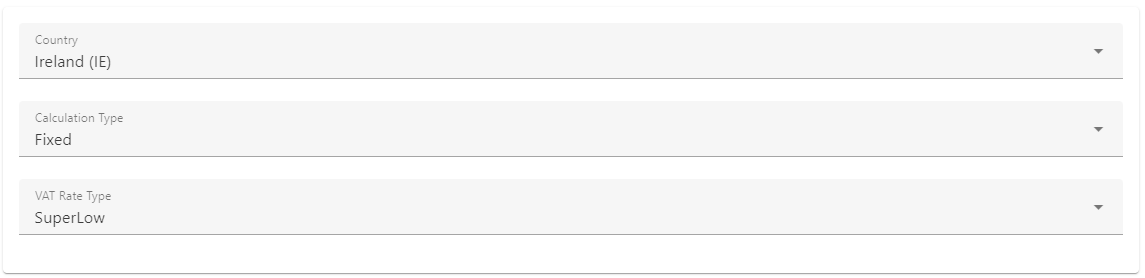
This results in the following Vat breakdown:
| Amount | BreakdownType | VatAmount | VatRate |
|---|---|---|---|
| 3.50 | Shipment | 0.17 | 0.048 |
Configure VAT Rate field in DMS
Too make sure Core-commerce applies the correct VAT-rates, it is needed to correctly configure and fill the VAT Rate field in the DMS.
- Add the field "VatRateType" on the "Product" entity in the dms
- Go to DMS Backstage
- Go to Fields and click on "Add"
- Name: VatRateType
- Description: Type of VatRate (High, Low1, Low2, SuperLow, NoVat)
- Entity: Product
- Field Type: Generic
- Value maximum length: 30
- Field is nullable: Checked
-
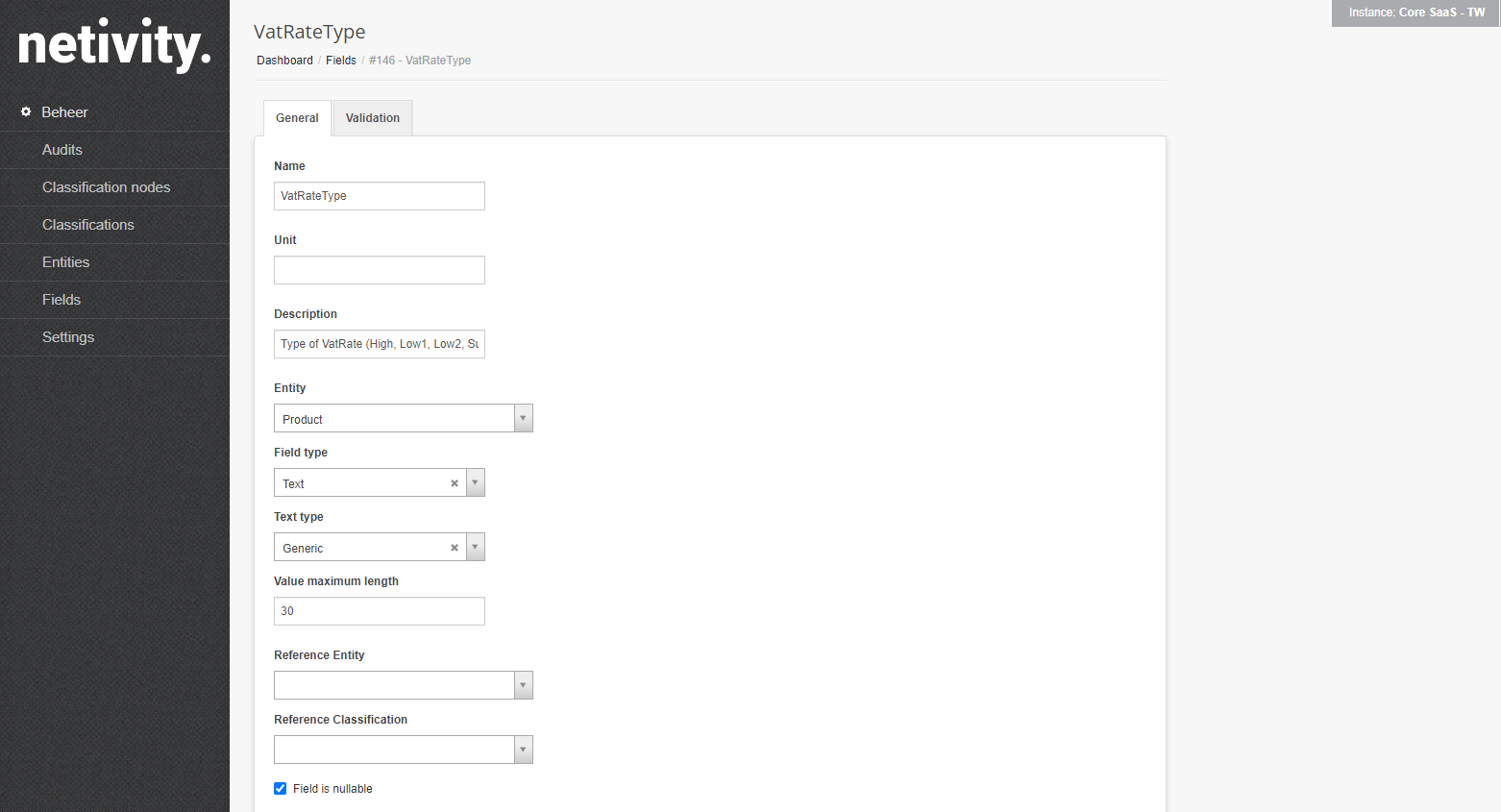
- The field value can now be imported
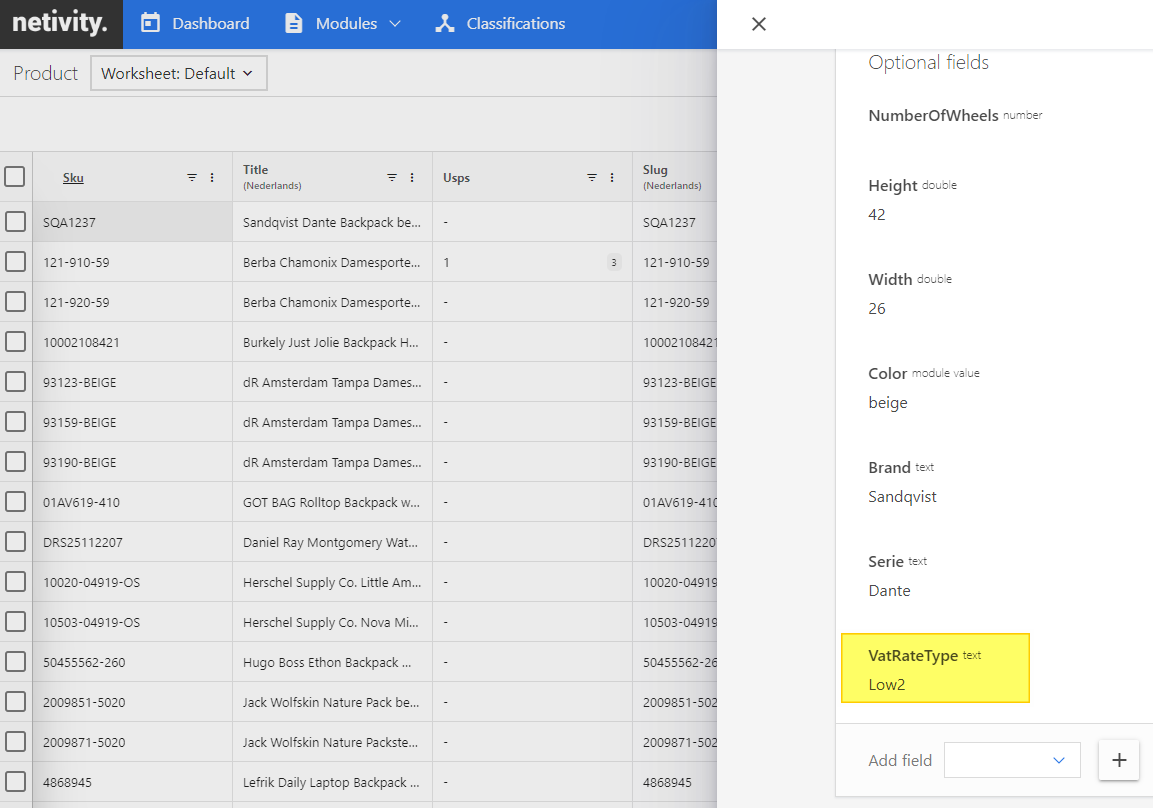
- Add the field in the Product entity sheet
- Go to DMS
- Click on the edit icon

- Add the field "VatRateType"
-
- The field can now be edited
Updated about 1 year ago