
Portal
Introduction
The Core-commerce Portal is the entry to the full Core-commerce suite. It speeds up the user experience by being a central accesspoint to all the apps and hubs. The Core-commerce Portal is an authenticated environment, only accessible by the people that are allowed to visit the different apps and hubs.
The solution
Web Components is the solution used for the portal. The portal is delivered as a JavaScript injection which is allowed to use by all the hubs. The same solution is also used by the portal itself.
How to integrate?
Integration starts at the layout of the application. Add the following markup to the page. The comment should contain the code of the app itself. The div#core-commerce-container gives control to the Web Component to move the content aside. For inspiration check the following PR. Also pass the endpoint (that is also added before the script) to the Web Component as parameter.
<core-commerce-navigation base-url="{ endpoint }"></core-commerce-navigation>
<div id="core-commerce-container">
    <!-- All the contents, this is like the slot -->
</div>
After this the JavaScript should be injected into the page. Preferably in the head but async is also possible. The endpoint is different for every customer and is built-up according the following format: https://[project]-[environment:acc|prod|test]-portal.core-suite-commerce.com. See custom domain section for and explanation on how to configure the custom domain. Below the code snippet for the JavaScript include.
<script src="{ endpoint }/index.js"></script>Custom Domain configuration
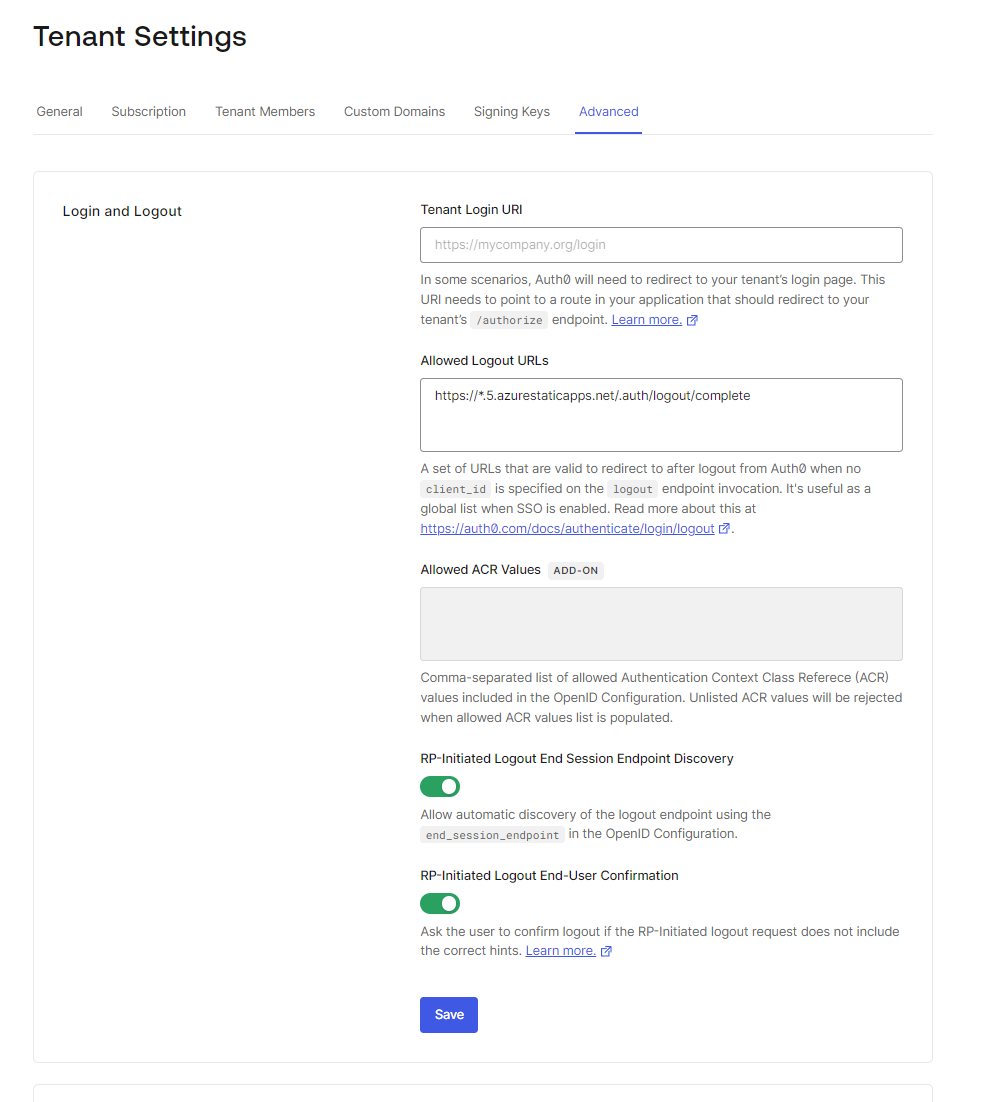
The default custom domain is configured using the following format: https://[project]-[environment:acc|prod|test]-portal.core-suite-commerce.com. This endpoint is configured in the resource config (portal.customDomain). The DNS record should be referenced to the static web app on beforehand. Afterwards the custom domain should be added to the "Allowed Logout URLs" section in the Tenant Settings from the Auth0 configuration.
Updated about 1 year ago