
Promotions
Core-commerce is powered with a highly configurable promotion engine. To make sure we can offer high reliability and predictability. Promotions are defined using templates, for example: Free shipping or Get 3, Pay 2. This to make sure we can create unit tests for all scenarios and know exactly what the promotions need to support.
Promotion attributes
In the OMS management module 'Promotion attributes', attributes can be managed which can be used while configuring a promotion. By defining the attributes before the actual configuration, we make it easier for customers to configure promotions.
List view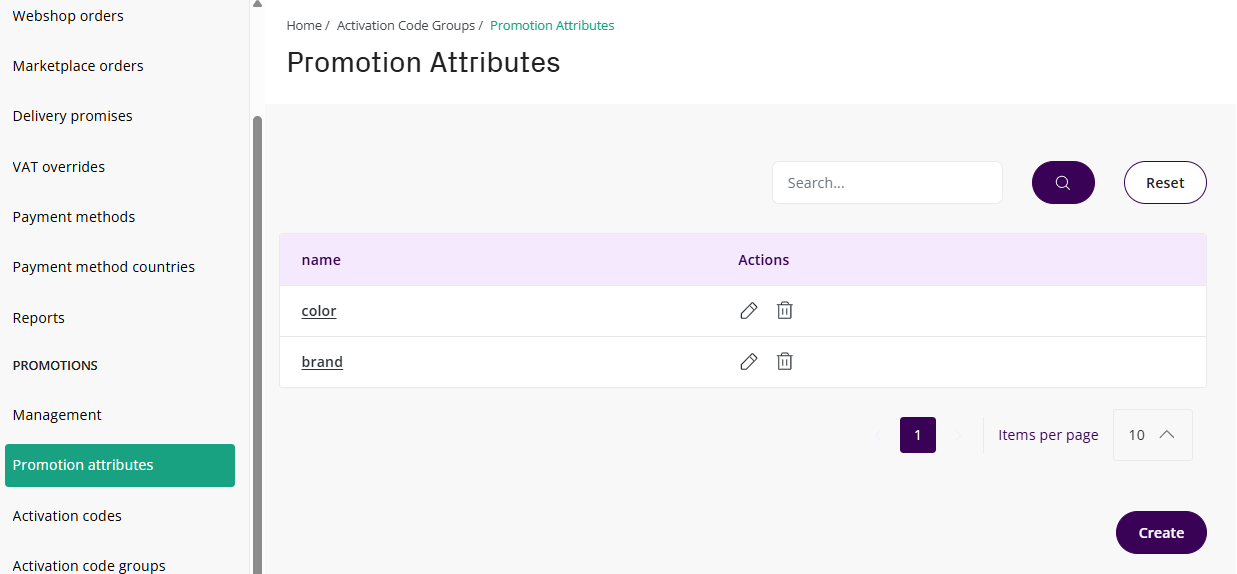
Detail view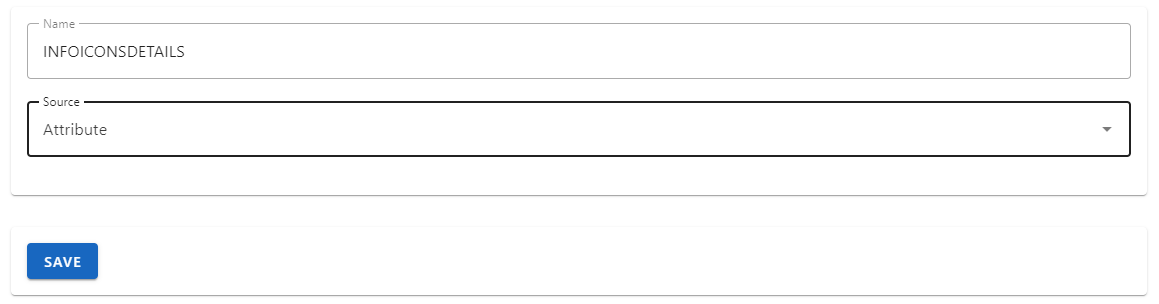
| Fields | Remarks |
|---|---|
| Name | Name which will be used for matching in the DMS, for example 'musthave' will be used to match on the product attribute 'musthave' in the DMS |
| Source | The source determines which field is matched in the DMS- Attribute: Matches on a product attribute- Product: Matches on a product field |
Management module
The Promotions management module in the OMS is used for creating, updating and deleting promotions. Activation codes (also known as discount codes) are linked to a promotion with a activation code group.
Promotions are created by using a wizard which helps the user setting up the correct promotion. After clicking on 'create', the user can select the promotion type followed by clicking on 'create':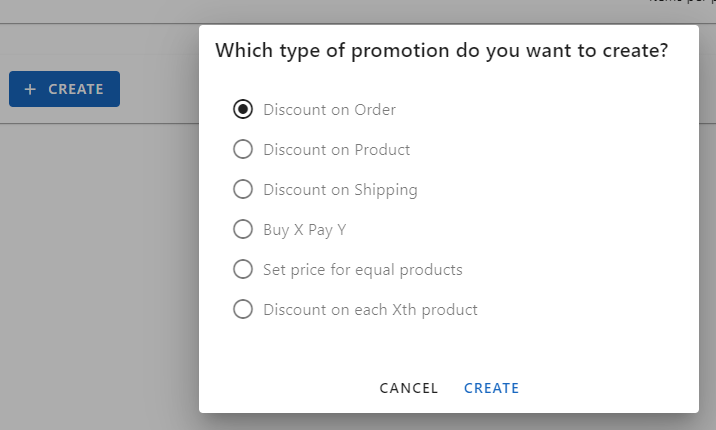
::: tip ✔️ Wizard steps and fieldsDepending on the promotion type, the wizard, options per step and required fields are determined.:::
Step: General
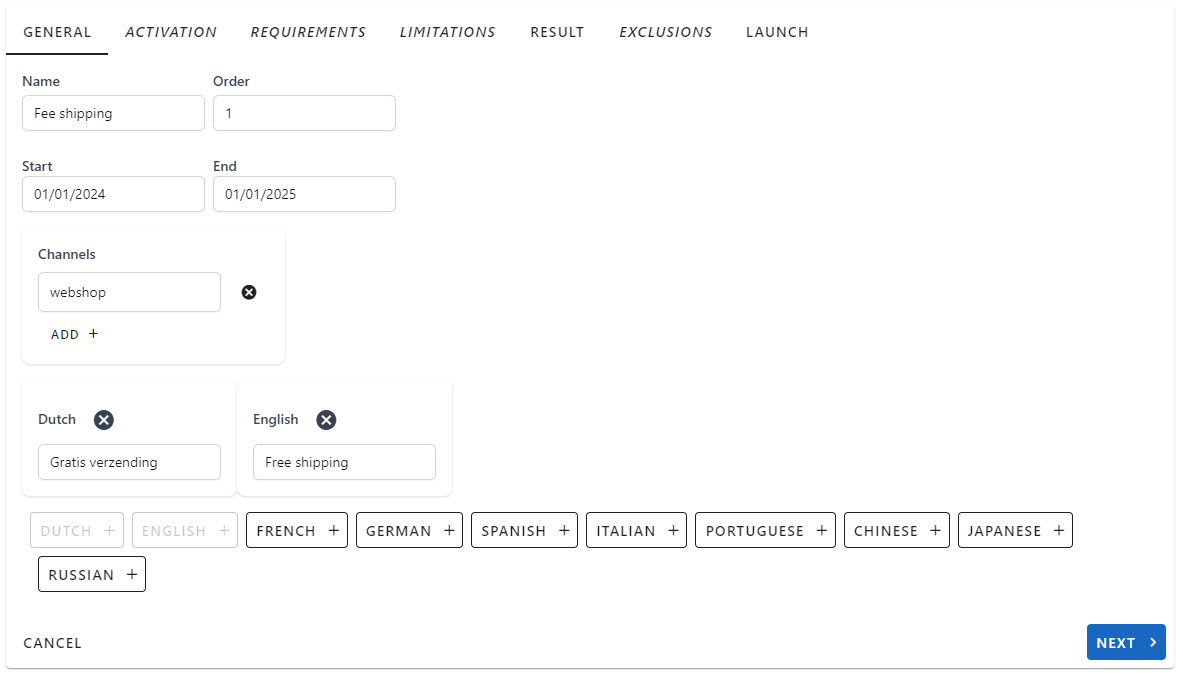
In the 'general' step the user can set the base information for a promotion:
| Field | Remark |
|---|---|
| Name | Internal promotion name, must be unique |
| Order | Define the order in which this promotion is applied, this relative to other promotions. 1 = High priority, 99 = Low priority |
| Start | Specify the start date for the promotion |
| End | Specify the end date for the promotion |
| Channels | Filter promotions on one or more channels, for example: 'webshop' or 'inline'Add the channel value on the shopping cart calculate call. |
| Description | Create a descriptive, localized, name for the promotionFor example: '10% off every 3rd item' |
| Reference | Reference can be configured for a promotion. This is returned in the order response under 'discountItems'. This way repeated promotions can always have the same reference, which can be extremely helpfull for analytics and reporting |
Example 'General' step
Step: Activation (Optional)
In this optional step, an activation code group can be selected. By configuring this, customers will need a valid activation code from this group to activate the promotion.
Step: Requirements (Optional)
In this optional step, the requirements can be set, which are applied on the promotion.
There are two types which can be used together, for optimal flexibility.
| Field | Remark |
|---|---|
| Products | Under products one or more product SKU's can be entered which are valid for the promotion |
| Attributes | Under attributes the configured attributes can be used together with the requested value to be matched. This as a requirement for the promotion. |
Attributes configuration
Matching on product attribute values is case insensitive and will be done with the product information from the DMS. This means that all attributes should be available in the DMS, this for example for matching on:
- Musthave
- Brand
- Category
For all configurations both including and excluding can be done. For example, this means you can include all 'musthave' products, except for a specific brand by excluding this brand.
Toggling exclude/include can be done by click on 'Included..' or 'Excluded' as following:
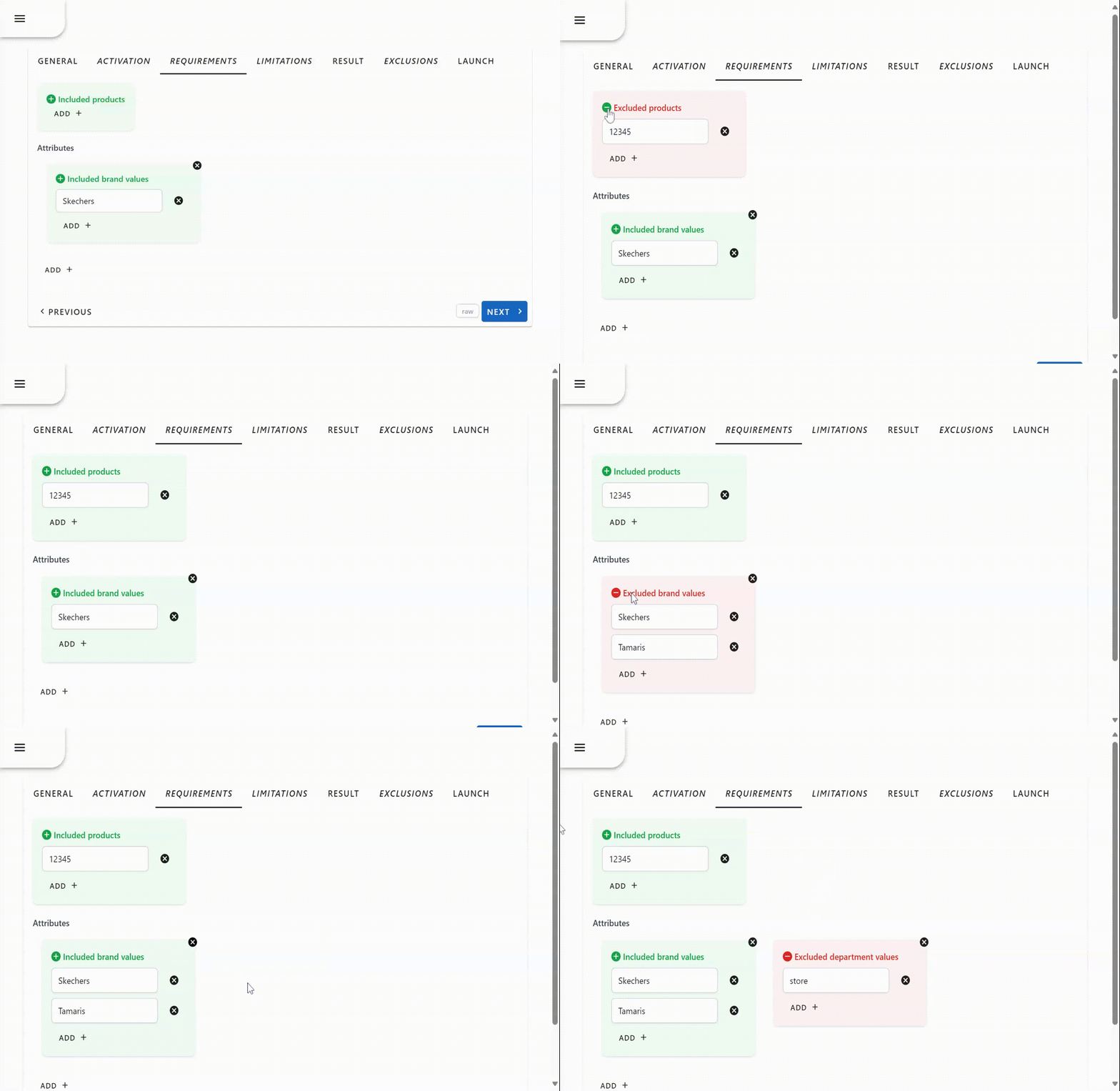
Multiple values can be set where multiple values for the same attribute, will be seen as an OR selection and multiple attributes as an AND selection.
The following configuration will match all 'brown' or 'gray' products: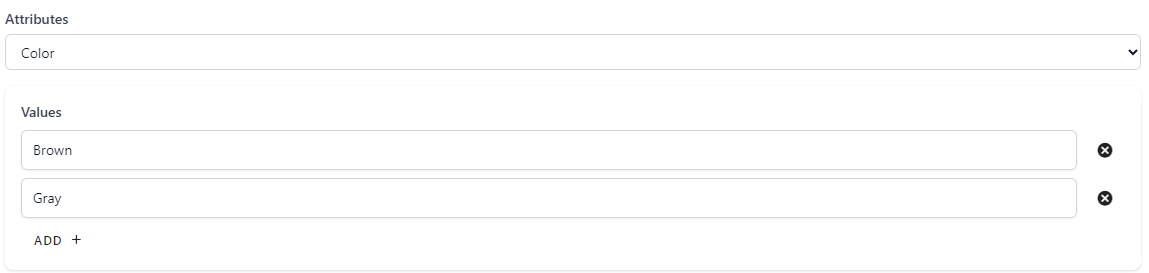
The following configuration will match all 'brown' products with the material 'leather':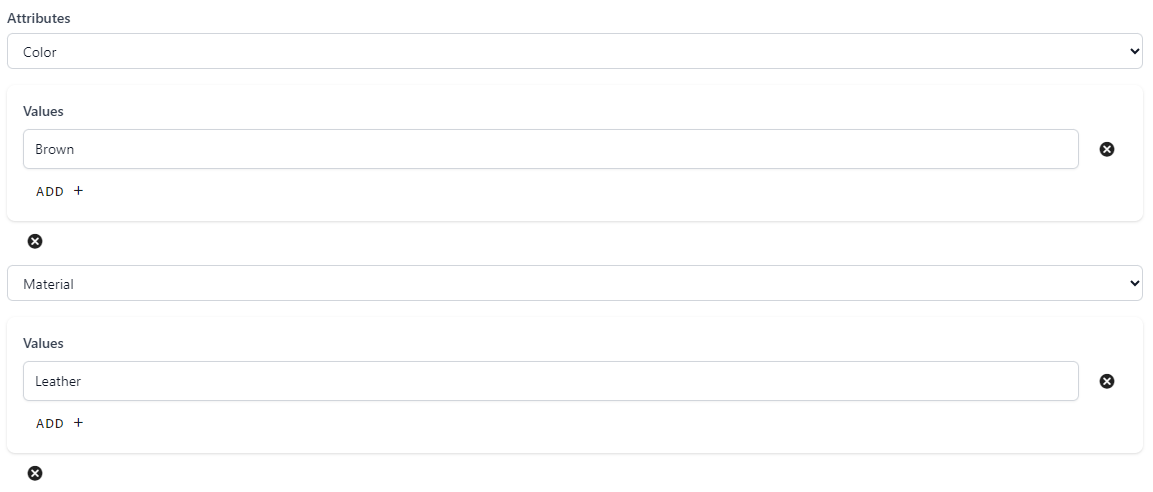
::: tip ✔️ Requirements logicWhen multiple requirements are configured, requirements are checked one-by-one from top-to-bottom.:::
Step: Limitations (Optional)
In this optional step, the limitations can be set, which are applied on the promotion.
| Field | Remark |
|---|---|
| Minimum order value | Only when the order subtotal is equal or higher than the 'Minimal order value', the promotion is activated |
| Minimum order quantity | The minimum ordered product quantity in the customers shopping cart, before the promotion is activated |
| Apply Limit | Limit how often a promotion is applied per order, no value is unlimited |
| None | No limitation is set |
Example 'Limitations' step

Step: Result
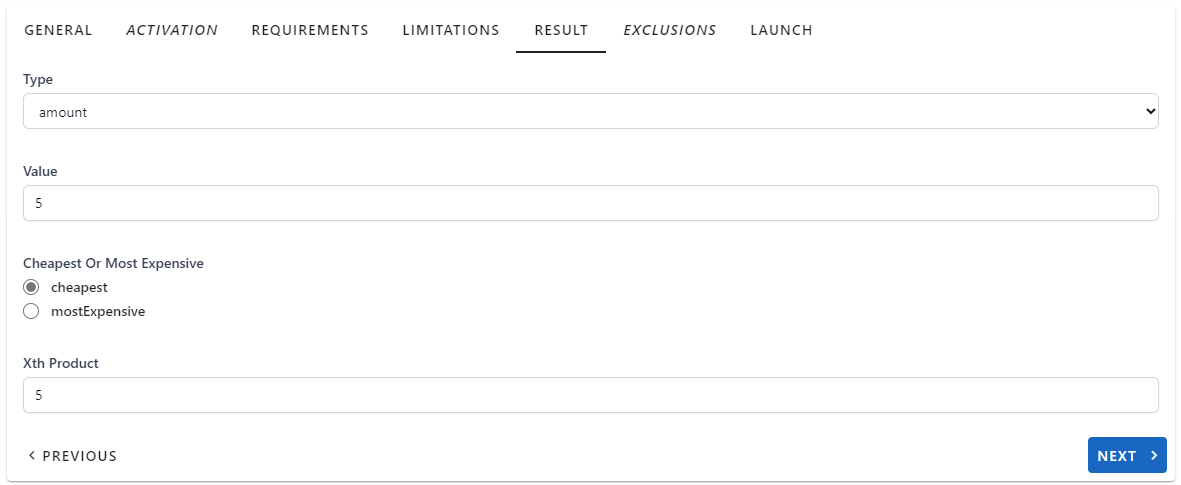
On the 'Result' tab the result of the promotion can be configured.
| Result type | Remarks |
|---|---|
| Free Shipping | When configured, the shipping costs can be set, this also can be 0 for free shipping |
| Amount |
|
| Percentage |
|
| Price per set | Total price for the configured set |
| Quantity in set | Total quantity in each set |
| Cheapest Or most Expensive | Apply promotion on cheapest or mostExpensive product, default is 'Cheapest' |
| Xth Product | Set the discount on each Xth product, for example on each 5th product |
Example 'Result' step
Step: Exclusions (Optional)
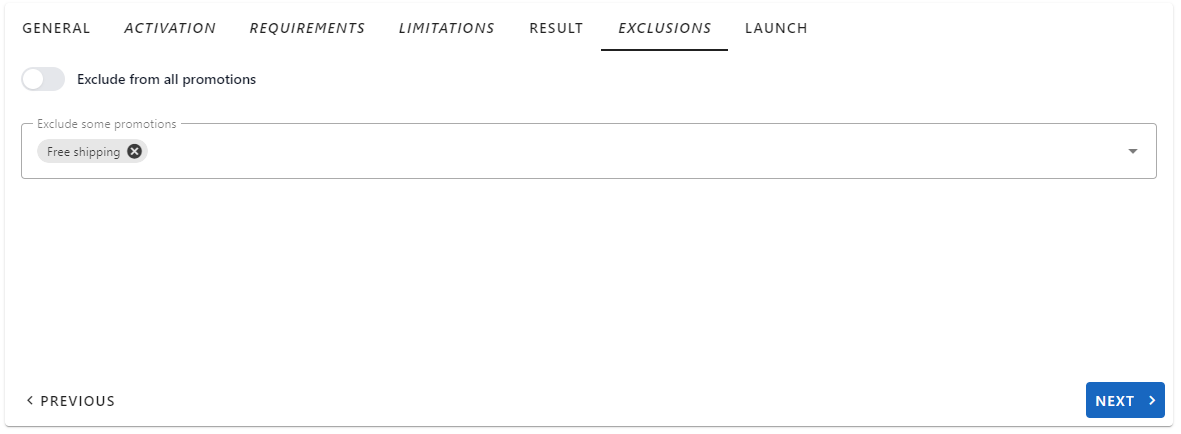
On the 'Exclusions' tab it can be configured if this promotion can be applied with other promotions.
| Result type | Remarks |
|---|---|
| Exclude from all promotions | Exclude a promotion to be used together with other promotions (works two-ways), order is used for determining the priority |
| Exclude some promotions | Selected promotions will be excluded to be used together with this promotion. This is extremely handy when you want to support 'Stack discount'.For example:- Promotion 1: 'Min. order value > 100 euro, 10% discount'- Promotion 2: 'Min. order value > 200 euro, 15% discount'.The second promotion can exclude the first promotion and when the order is correctly applied, the customer will get the 15% discount on orders above 200 euro. |
Example 'Exclusions' step
Step: Launch
In the launch step, the current configuration is shown for the active promotion. By clicking on the 'pencil icon', it is possible to change the specific value: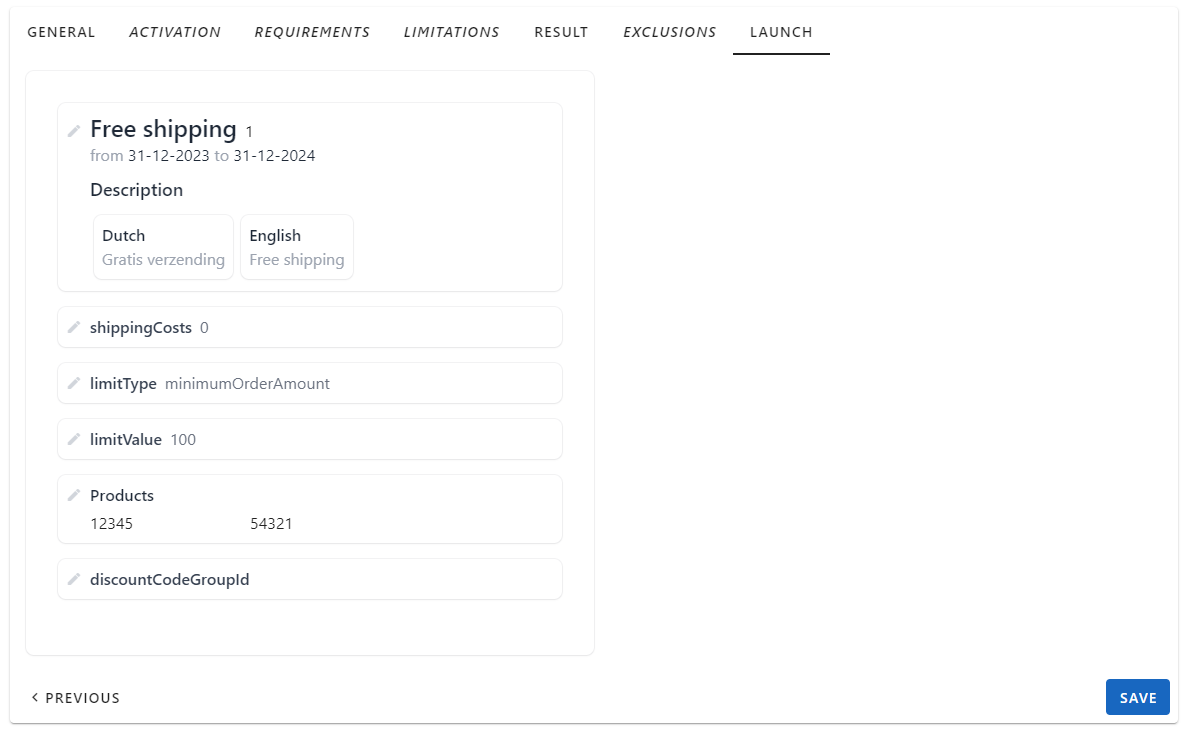
Promotion types
Although our promotion engine is highly configurable, we have chosen to create and manage promotions using a template selection followed by a wizard to guide users through each step and validate the new promotion configuration in the last summary step.
| Promotion type | Examples | DiscountType |
|---|---|---|
| Discount on order |
| DiscountOnOrderPromotion |
| Discount on product |
| DiscountOnProductPromotion |
| Discount on shipping |
| |
| Buy X Pay Y |
| BuyXPayYPromotion |
| Set price for equal products |
| BuyXForSetPricePromotion |
| Discount on each Xth Product | -Each 2nd product, 50% discount- Each 3rd product, 1 euro- Each 2nd product, 50% discount with activation code 'spring24' | DiscountOnXthProductPromotion |
Roadmap
The following promotions are currently on our roadmap for implementation:
- Buy product X, get product Y for free
- Fixed price for bundle of products
- For example shirt, trouser & socks for X euro
Activation codes
Activation codes are added to a activation code group, which can be linked as an optional requirement for most promotion types.
In the OMS it is possible to generate activation codes, the activation codes generations configuration can be done in the scaling configuration under:
- oms.activationCodes
Activation code groups
List view
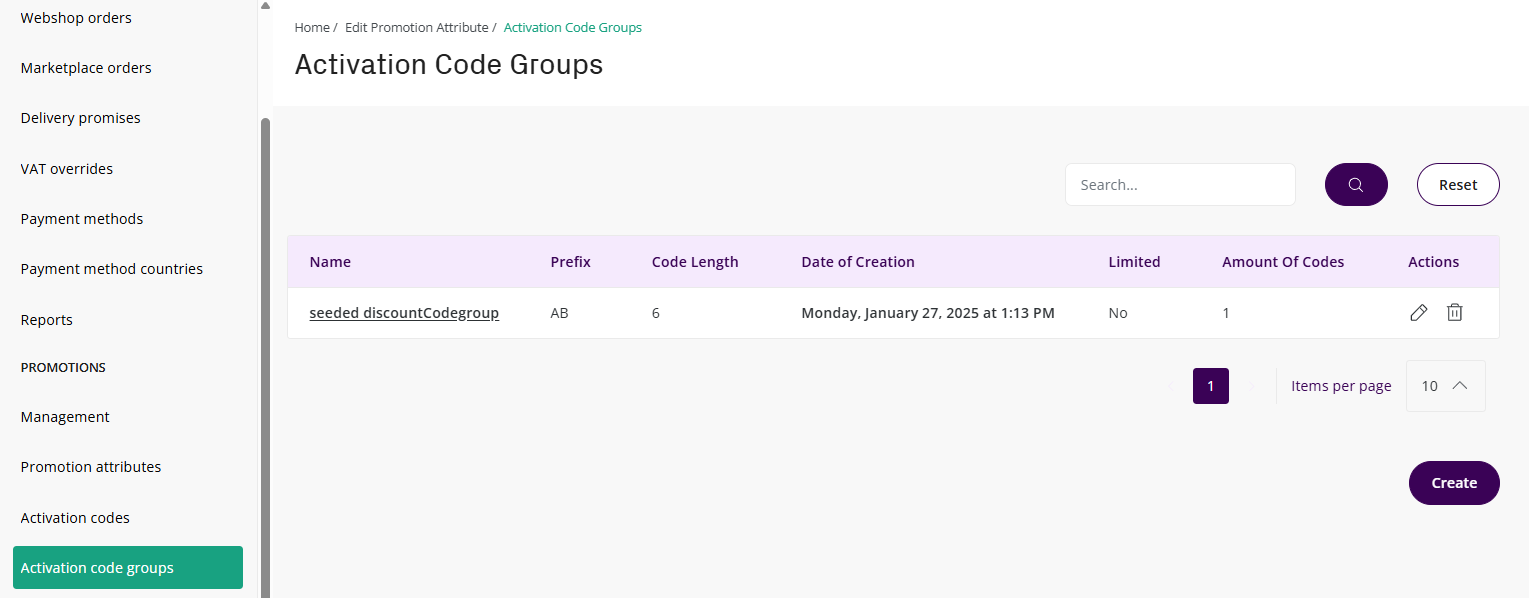
By clicking on 'Save and continue' changes will be saved and screen will be reloaded.By clicking on 'Download CSV', the activation codes in the group can be downloaded. This can be useful when these codes need to be imported in an Third Party system like an Email service provider.
Per activation code group the following fields can be configured.
| Field | Remarks |
|---|---|
| Name | Activation code group change |
| Prefix | Prefix for codes generated in this group |
| Length | The length for codes generated, this including the prefix length |
| Limited | Is the activation codes usage limited? (only in combination with unique code generation) |
| Amount of uses | Visible when Limited is 'checked', configure how many times a code can be used (only in combination with unique code generation) |
| Enter the group size | Amount of codes which will be generated in the group |
By clicking on 'Create and continue' the new group will be created and the user will be shown the edit screen.By clicking on 'Save and continue' changes will be saved and screen will be reloaded.
By clicking on 'Download CSV', the activation codes in the group can be downloaded. This can be useful when these codes need to be imported in an Third Party system like an Email service provider.
Activation codes
In the activation codes management module, the generated activation codes can be seen:
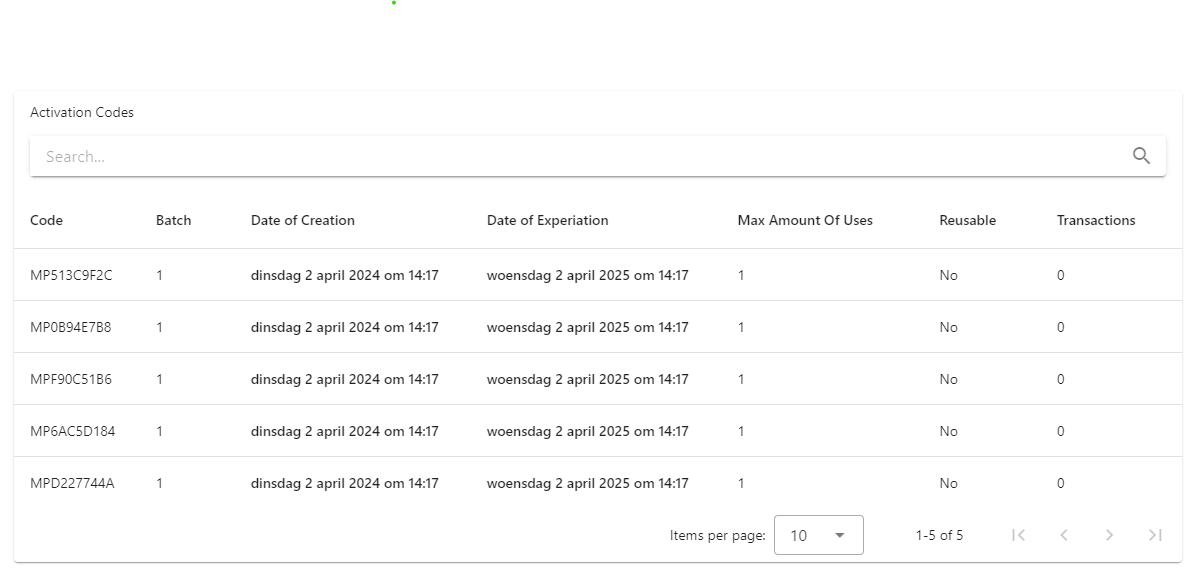
Per activation code the following information is visible.
| Field | Remarks |
|---|---|
| Code | Activation code |
| Batch | Batch number for generation |
| Date of Creation | Date code generated |
| Date of Expiration | Date code will expire |
| Max Amount of Uses | 0 (unlimited) or 1 (one-time use) |
| Reusable | Can code be reused |
| Transactions | Total number of transactions in which the code has been used |
Each activation code has one of the following states:
- 0: Reserved (default)
- 1: Confirmed
- 2: Canceled
These states will be used to determine if the transaction code is still valid, or if it can be reused.
Promotion results
Promotion results are added in the ShoppingCart calculate endpoint. This endpoint can be called with an optional array of activation codes to be applied. In the shopping cart calculation, the activation codes and promotions are validated and checked.
Validation results are added in the validationResult, this can be used by integration teams to correctly inform customers.
Activation code validation results are added in the messages collection. Currently this only has the 'ActivationCodeMessage', but this will be extended later.
ActivationCodeMessage returns the activation code and one of the following return types:
- NotFound
- Expired
- Redeemed
Example Calculated shopping cart
{
	"lines": [
		{
			"sku": "100",
			"quantity": 1,
			"totalAmount": 50,
			"totalAmountFrom": 50,
			"vatTotalAmount": 8.68,
			"vatTotalAmountFrom": 8.68,
			"vatRate": 0.21
		}
	],
	"discounts": [
		{
			"name": "Promotion.Name",
			"code": null,
			"totalAmount": -10,
			"vatTotalAmount": [
				{
					"amount": -1.74,
					"rate": 0.21
				}
			]
		}
	],
	"shippingCosts": 2.5,
	"paymentCosts": 1.95,
	"totalAmount": 44.45,
	"vatBreakdownItems": [
		{
			"breakdownType": "Total",
			"vatRate": 0.21,
			"amount": 44.45,
			"vatAmount": 7.71
		},
		{
			"breakdownType": "Shipping",
			"vatRate": 0.21,
			"amount": 2.5,
			"vatAmount": 0.43
		},
		{
			"breakdownType": "Payment",
			"vatRate": 0.21,
			"amount": 1.95,
			"vatAmount": 0.34
		}
	],
	"validationResult": {
		"isValid": true,
		"messages": [
		]
	}
}
Product promotions
Core-commerce has advanced support for getting the active promotions (advertisable) for a product including the calculated prices (discounts). This can be extremely useful to show correct pricing and the active promotions in the front-end.
Discounts
For determining 'discounts', only 'Active promotions' are being used:
- Promotion type is 'Discount on Product'
- No exclusions set
In the pricing calculation, the 'Minimum order amount limitation' is being applied when it is not a multiple [x], so that a discount like '10% discount > minimum order amount 30 euro' is correctly applied in the pricing.
Advertisable
For determining 'advertisable', the following conditions apply:
- No activation code group configured
Example advertisable with discounts
var expectation = new CalculatedItem()
{
  Promotions = new List<AdvertisablePromotion> { new() { Name = "Promotion.Name" } },
  Pricing = new CalculatedPricing
  {
   PriceFrom = 70m,
   VatPriceFrom = 12.15m,
   VatRate = 0.21m,
   Price = 50m,
   VatPrice = 8.68m,
   Discounts = new List<CalculatedDiscount>
   {
    new () { Amount = -10, VatAmount = -1.74m }
   }
  }
};
Example advertisable without discounts
var expectation = new CalculatedItem()
{
  Promotions = new List<AdvertisablePromotion> { new() { Name = "Promotion.Name" } },
  Pricing = new CalculatedPricing
  {
   PriceFrom = 70m,
   VatPriceFrom = 12.15m,
   VatRate = 0.21m,
   Price = 50m,
   VatPrice = 8.68m,
   Discounts = new List<CalculatedDiscount>()
  }
};
To make use of this functionality, the OMS 'calculation' endpoints can be used:
- GET: Get Pricing without pricing attributes support
- POST: Get Pricing including pricing attributes support
In the response the following logic is applied:
| Field | Remarks |
|---|---|
| Price | Price as defined in DMS |
| PriceFrom | From price as defined in DMS |
| Promotions | List with advertisable promotions |
| Discounts | List with discounts |
For correct pricing, the discounts values can be used to calculate the visible prices in the bespoke frontend.
Updated 8 months ago