
Sendcloud
When customers have Sendcloud, it is possible to use the dynamic checkout functionality (PaaS Only). In Core-commerce, we're exposing Sendcloud functionality through our OMS API definition, which integration teams can use for the implementation in the front-end.
Step 1: Configuration
In the OMS the configuration can be done under "Settings" and then in the tab "Sendcloud".
| Field | Remarks |
|---|---|
| Config ID | Configuration ID for published dynamic checkout |
| Public Key | Public key from Sendcloud |
| Secret Key | Secret key from Sendcloud |
| Name | Select default country |
| Test | When checked, test mode will be applied |
Get configuration from Sendcloud
To get the correct configuration ID login to Sendcloud and go to Dynamic Checkout. Click on "Edit" for the published configuration. In the new screen on top the configuration id can be copied.
To get the correct keys, in Sendcloud goto Settings, click in the "Algemeen" menu on the right side on "Integraties". In the new screen click on "Configureren" for the used "Sendcloud API" integration.
Under "Publieke sleutel" and "Geheime sleutel" the keys can be found. If lost, new keys need to be generated: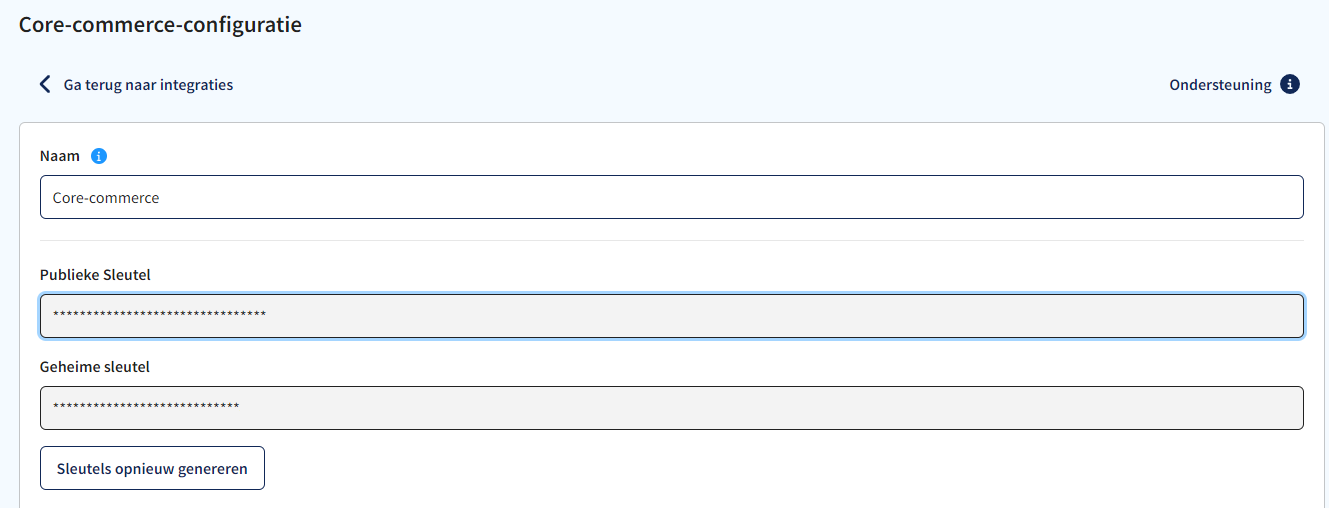
Step 2: Implement Standard & nominated day delivery options
After the configuration has been done, the following two endpoints can be used to implement Standard & nominated day delivery options.
GetOptions parameters
When using the GetOptions endpoint, the following request body parameters can be used:
| Parameter | Remarks | Required |
|---|---|---|
| weight | Weight of the package in grams | Yes |
| value | Total order value, for filtering on delivery options | Yes |
| configurationId | When you want to use a specific configuration, instead of the default configuration ID from the Settings, the 'configurationId' parameter can be added in the request body | No |
| checkout_identifier_type | Defines the way of getting the shipping label via Sendcloud. Currently only 'method_id' is suppported | No |
| checkout_metadata | Arbitrary text data that can be used in combination with Checkout Rules to show or hide delivery options based on the value provided. For example, it can be used to filter delivery options based on the product SKU | No |
| parcel_height | Parcel height in centimeters. Examples: “48” or “52.3” | No |
| parcel_length | Parcel length in centimeters. Examples: “48” or “52.3” | No |
| parcel_width | Parcel width in centimeters. Examples: “48” or “52.3” | No |
[
	{
		"key": "weight",
		"value": "123"
	},
	{
		"key": "value",
		"value": "123"
	},
	{
		"key": "configurationId",
		"value": "e48aebd1-bc3e-4ad6-9f8c-c7eb8fc4c7af"
	}
]
GetOptions attributes
The GetOptions endpoint will return the following additional attributes per delivery option.
| Key | Value |
|---|---|
| SendCloud.InternalTitle | Internal title |
| SendCloud.DeliveryMethodType | Possible values:
|
| SendCloud.CheckoutIdentifier.MethodId | Checkout identifier corresponding value. For example, if the type is method_id, the value will represent the id of the method as 3542 |
| SendCloud.CutOffTime | Cut-off time for delivery method (optional) |
Implementation instructions
- Attributes on cart & order:
- Add "DeliveryOptionId" as an attribute to AddressDeliveryPreference in cart & order
- Add "DeliverySlotId" as an attribute to AddressDeliveryPreference in cart & order
- Save additional info on attributes
- Front-end integration
- Create DeliverySlot component & adjust to available options (e.g.: with & without date-selection)
- Before slot/carrier selection in checkout, send "Default shipping costs" as shippingCosts to cart calculation endpoint
- After slot/carrier selection in checkout, send shippingCosts to cart calculation endpoint
- Add "DeliveryOptionId" as an attribute to AddressDeliveryPreference in cart & order
- Add "DeliverySlotId" as an attribute to AddressDeliveryPreference in cart & order
Step 3: Implement Pickup locations
1. GetDeliveryOptions
When the servicepoint delivery is enabled in SendCloud, the dynamic checkout module in SendCloud is used to determine whether the pickup delivery is available for your package, just like you can do for your other delivery options.
2. Show pickup location option in your checkout
You can recognize delivery option types by the 'SendCloud.DeliveryMethodType' attribute. When the value is 'service_point_delivery', it is a pickup delivery option.
There might be multiple carriers available (PostNL, DPD, DHL). It's up to the integration team to group them in one integration, let the customer choose their own carrier, or make any other choices in the integration platform.
3. Get the pickup locations for your carrier(s)
When the customer chooses for service_point_delivery, you should adapt the UX to make sure the customer can choose a pickup location, or is directed to the nearest by default. To do this, you should call the 'GetPickupLocations' endpoint in Core-commerce, using the carrier code of the selected delivery option. When using a grouped view for multiple carriers, it's important to make sure the carriers from your available DeliveryOptions are passed as parameters.
4. Show pickup locations & handle cart
The integration platform is handling the selection of the correct pickup location & store the pickupLocationId on the cart. It's recommended to use the 'PickupDeliveryPreference' in the cart, so that we'll convert the data to the order automatically. An optional address can be added, for extended VAT calculation based on the countrycode. This field is mandatory when sending in an address.
5. Export order to ERP
When exporting an order to the ERP, you can recognize your pickup order & collect the pickup location data if necessary, using the Core-commerce API for pickup locations.Sendcloud
Updated about 1 year ago